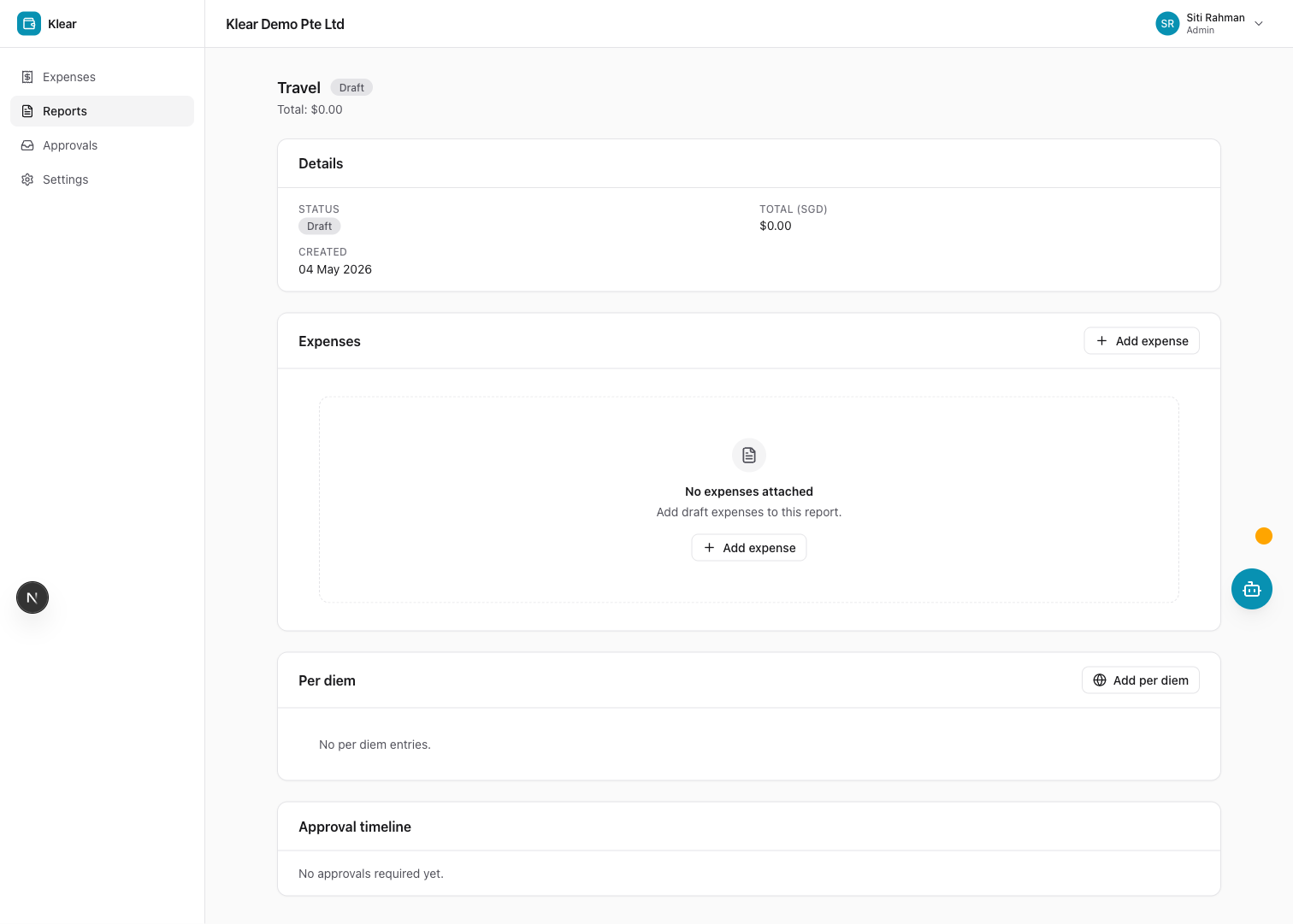
Expense Reports
Expense reports let you group related expenses — and per diem entries — into a single container and submit them together for approval. The approval chain is determined by the report total, not individual expense amounts.
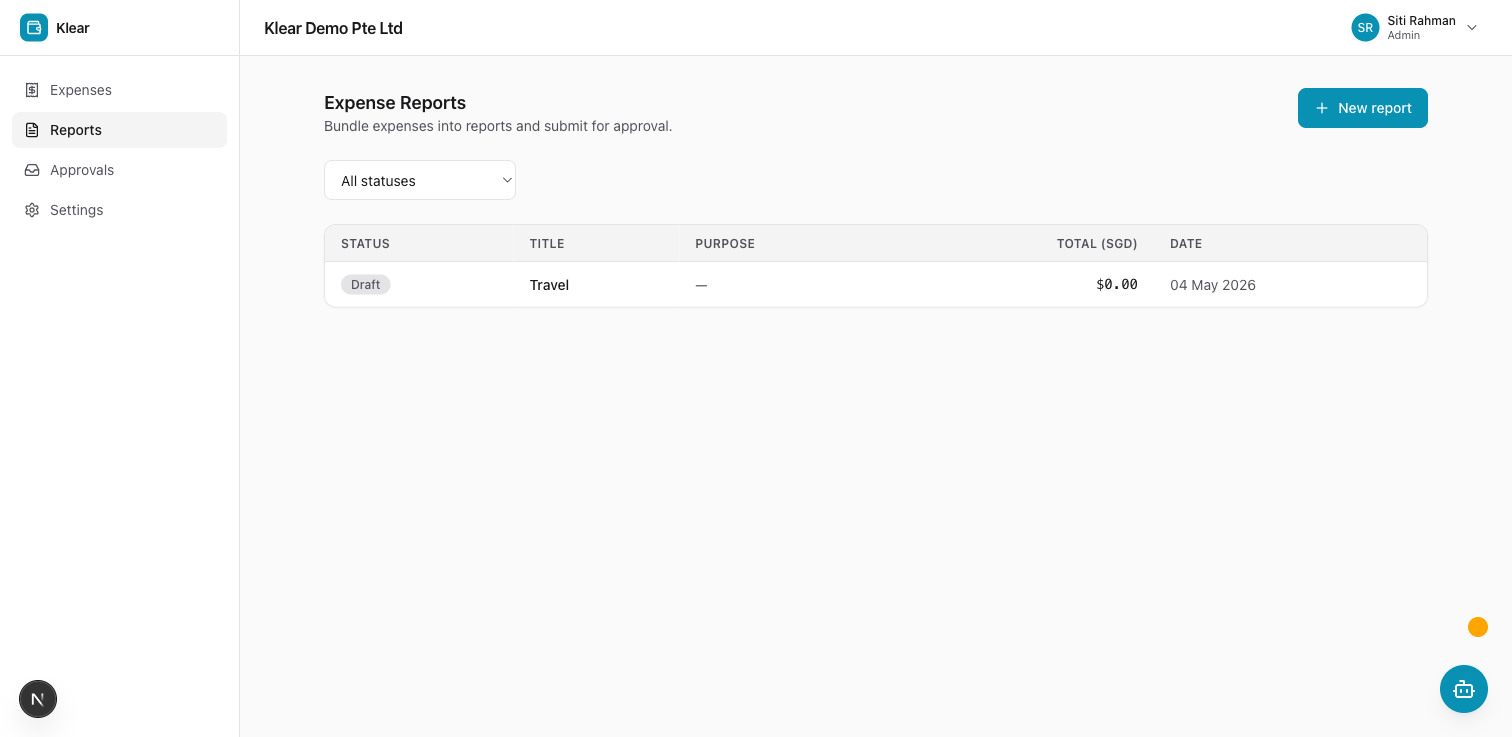
What is an expense report?
An expense report is a named collection of expenses and per diem entries. Instead of submitting each expense one at a time, you bundle everything from a business trip, project, or period into one report and send it for review as a unit.
- One approval workflow — the report total drives which policy conditions fire and which approval chain is used
- Per diem included — daily allowance entries live inside reports alongside regular expenses
- Full audit trail — approvers see all items, notes, and receipts in one place
Creating a report
-
From the Expenses section, click + New report
-
Fill in the required fields:
Field Notes Title Short name for the report, e.g. "Bangkok Sales Trip May 2026" Purpose Brief description of the business reason -
Click Create report — the report is saved as Draft
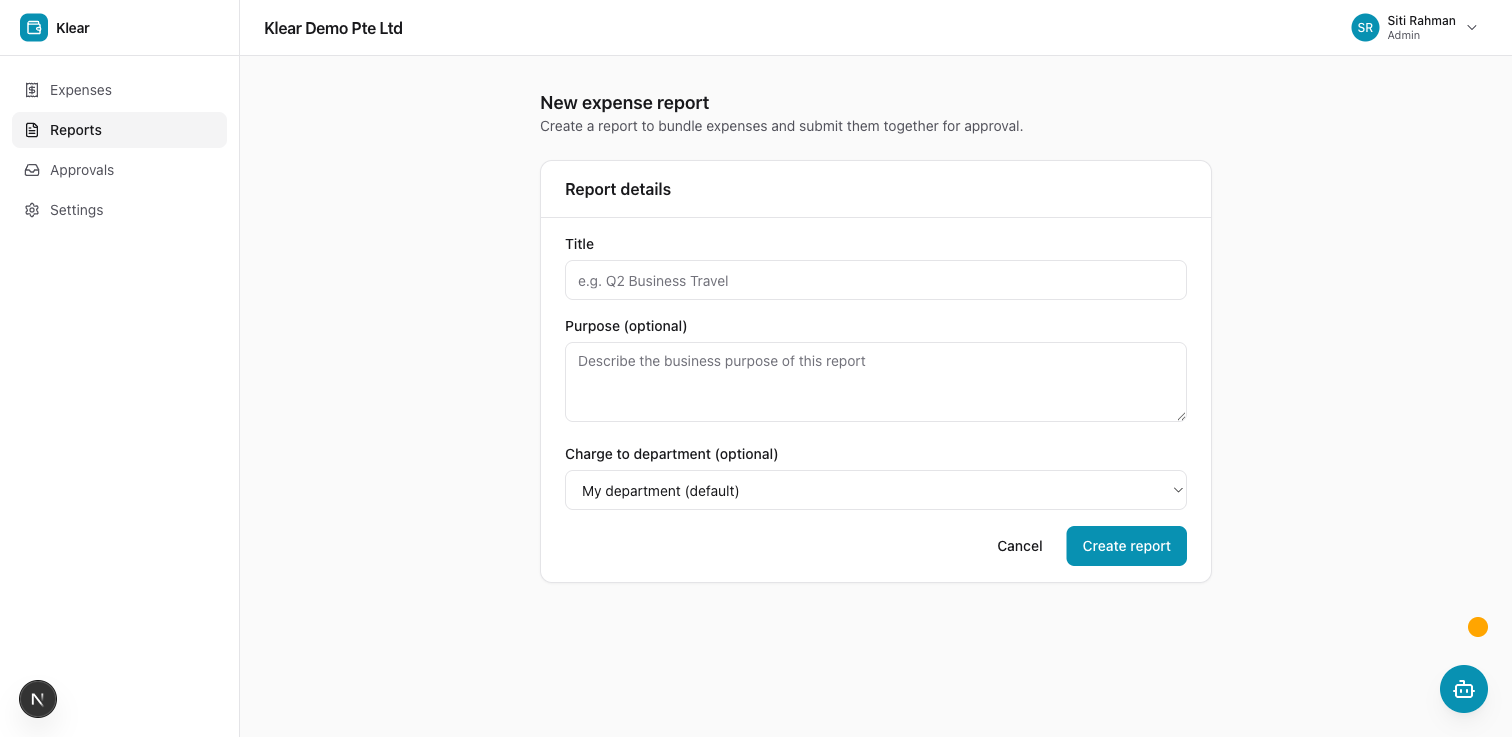
The report opens immediately so you can start adding expenses and per diem entries.
Adding expenses to a report
Only expenses in Draft status can be added to a report. Submitted or approved expenses cannot be moved.
- Open the report
- Click + Add expense
- Select one or more draft expenses from the list, or click Create new expense to create one directly inside the report
- Click Add selected
The added expenses appear in the report's line-item table. Their individual status changes to In report — they can no longer be submitted individually.
To remove an expense from a report, open the expense row and click Remove from report. It returns to Draft status and can be re-added to any report.
Adding per diem entries
Per diem entries are daily allowances for destinations covered by a Per Diem Policy. No receipt is required.
- Open the report
- Click + Add per diem
- Select the destination country from the dropdown — only countries with an active Per Diem Policy are listed
- Set the start date and end date of the trip
- Klear calculates the number of days and auto-fills the meals rate and incidentals rate from the matching policy
- Review the breakdown and click Add to report
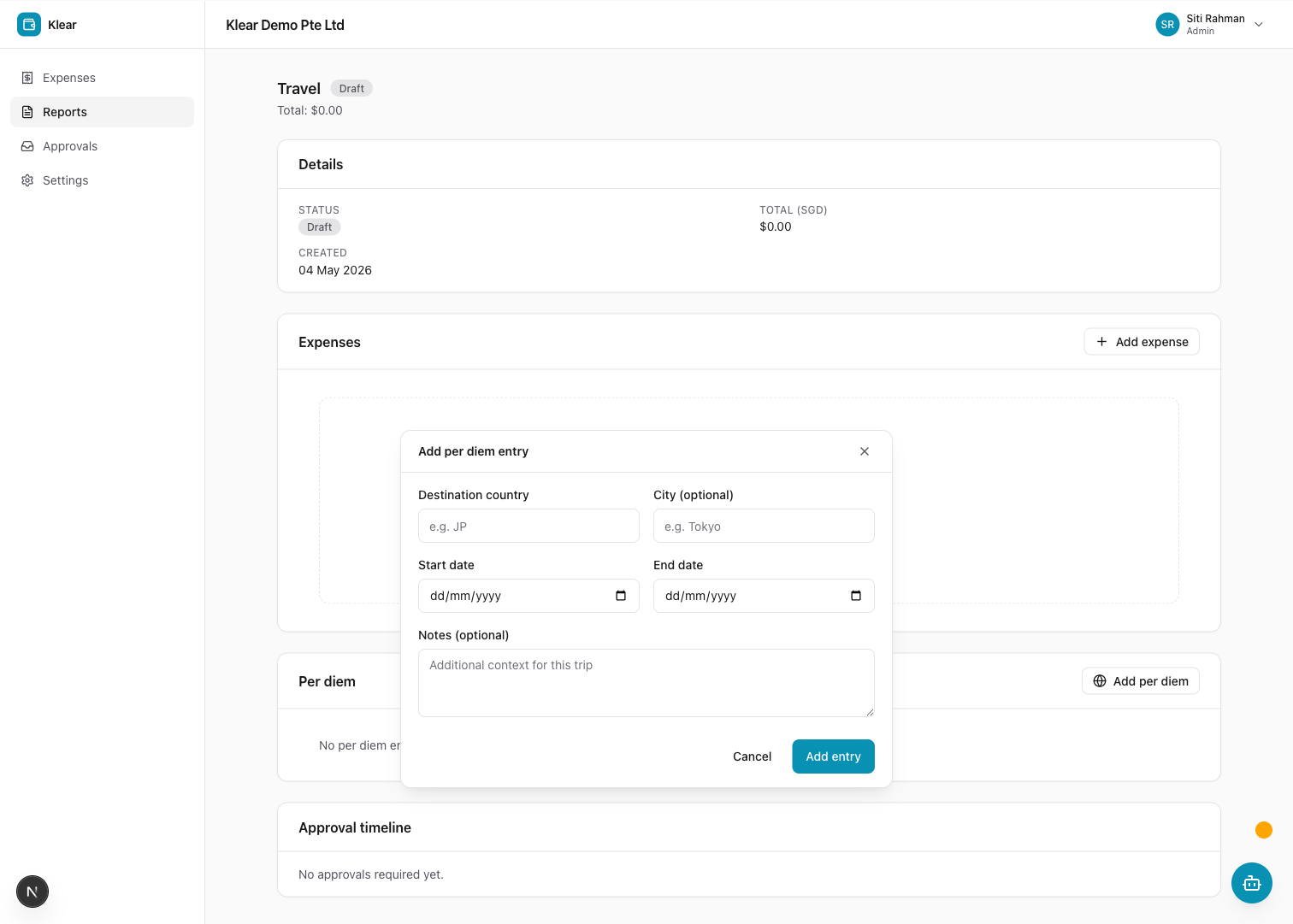
The per diem entry appears in the report table alongside regular expenses. The daily rates and total are read-only — they are set by your admin's Per Diem Policy.
If your destination country is not listed, your admin has not yet created a Per Diem Policy for it. Contact your Finance team.
Submitting for approval
When all expenses and per diem entries are in the report and you are ready to send it for review:
- Open the report
- Review the Report total — this is the sum of all line items in SGD
- Click Submit report
- Confirm the submission in the dialog
Klear evaluates the report total against active policies to determine the approval chain. You will see a confirmation with the first approver's name.
You cannot submit a report if any expense in it has a hard block policy flag. Resolve all hard blocks before submitting.
Report statuses
| Status | Meaning |
|---|---|
| Draft | Report is being built. Not visible to approvers. You can still add or remove line items. |
| Submitted | Sent to the first approver. No further edits allowed. |
| In Review | At least one approver has acted; the report is progressing through the chain. |
| Approved | All approvers have approved. Awaiting payment processing. |
| Rejected | An approver rejected the report. It is returned to you with a reason. You can edit and resubmit. |
| Paid | Finance has marked the report as reimbursed. |
| Closed | Report is finalized and archived. No further action needed. |
After a rejection, the report returns to Draft status. You can update line items and resubmit.
Tracking report progress
Your reports and their current status are listed on the Reports tab in the employee app. Click any report row to see the full approval timeline, approver comments, and individual line-item statuses.