Per Diem Policies
Per diem policies define daily allowance rates for employee travel to specific destinations. When an employee adds a per diem entry to an expense report, Klear automatically applies the configured rates — no receipt required.
What is per diem?
Per diem (Latin: "per day") is a fixed daily allowance that covers meals and incidental expenses during business travel. Instead of submitting individual receipts for every meal, employees declare a destination and date range, and Klear calculates the total allowance from the policy rates you configure.
Benefits:
- No receipts required — daily rates are pre-approved by the admin
- Consistent treatment — all employees travelling to the same destination get the same rates
- Policy-controlled approval — the approval chain is set in the per diem policy itself
Creating a per diem policy
Per diem policies are created in the same Policy Builder used for expense policies. Navigate to Policies and click + New policy.
Step 1 — Name and type
At the top of the builder, click Per Diem Policy to switch the policy type. This replaces the WHEN/THEN condition builder with per diem-specific rate fields.
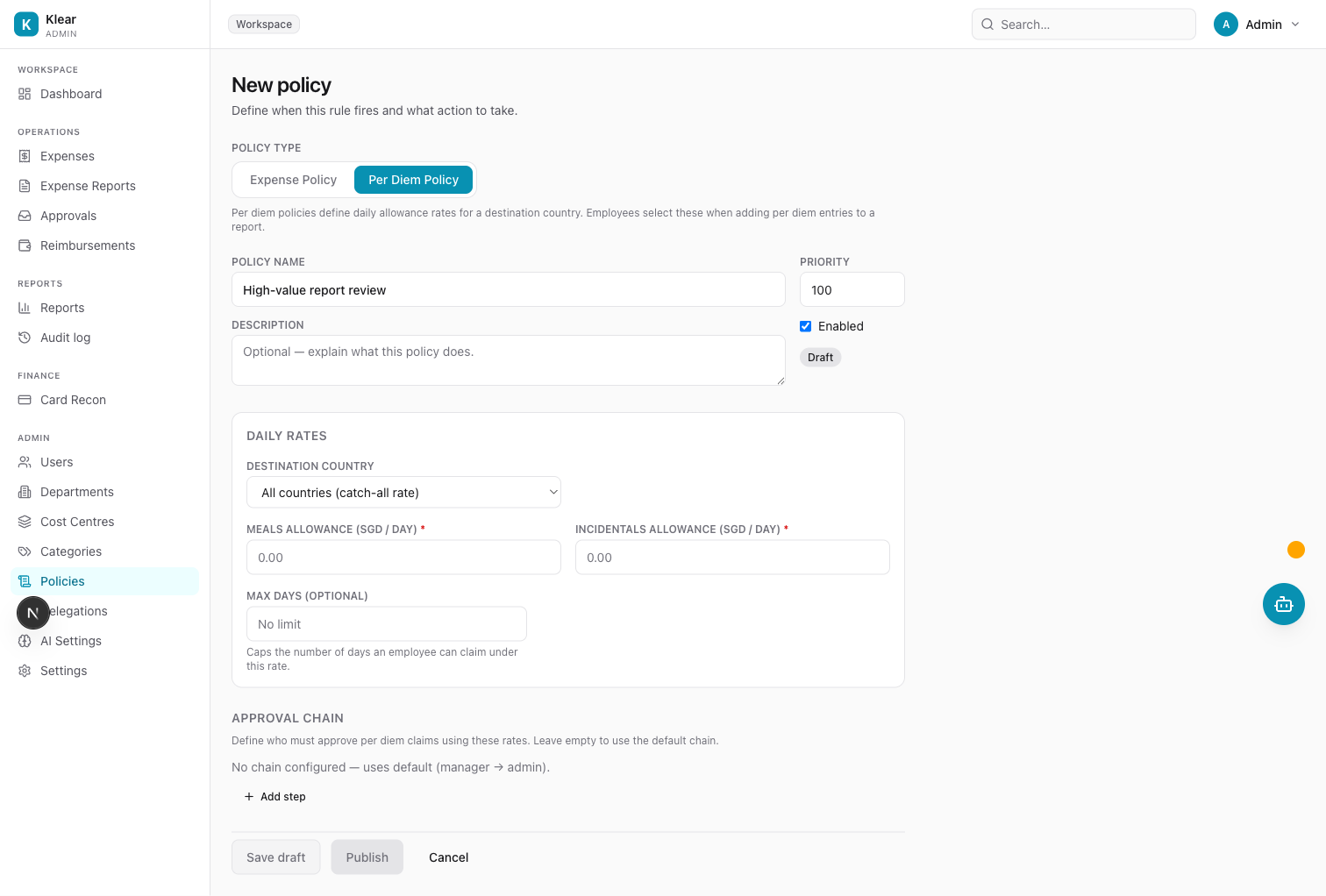
| Field | Notes |
|---|---|
| Policy name | e.g. "Thailand Per Diem — Standard" |
| Description | Optional. Describe the coverage, e.g. "Standard rates for employee travel to Thailand." |
Step 2 — Destination and rates
| Field | Description |
|---|---|
| Destination country | The country this policy applies to. Select a specific country, or choose All countries (catch-all rate) to apply to any destination without a more specific policy. |
| Meals allowance (SGD / day) | Fixed SGD amount per day for meals |
| Incidentals allowance (SGD / day) | Fixed SGD amount per day for incidental expenses (tips, laundry, etc.) |
| Max days (optional) | Maximum number of days an employee can claim per trip. Leave blank for no limit. Entries exceeding this limit are blocked. |
Example configuration for Thailand:
| Field | Value |
|---|---|
| Destination country | Thailand |
| Daily rate — Meals | SGD 60.00 |
| Daily rate — Incidentals | SGD 20.00 |
| Max days | 14 |
With this configuration, a 5-day trip to Thailand would yield:
- Meals: 5 × SGD 60 = SGD 300
- Incidentals: 5 × SGD 20 = SGD 100
- Total: SGD 400
Step 3 — Approval chain
The approval chain works the same as for regular expense policies. Click + Add step to define who must approve per diem entries that use this policy.
| Setting | Options | Notes |
|---|---|---|
| Role | Direct Manager, Finance Admin, Company Owner | Who must approve at this step |
| SLA hours | Any number | How many hours before escalation. Default 48h. |
| Lock | Locked / Unlocked | Locked steps cannot be overridden by department-level policies |
Leave the chain empty to fall back to the default approval chain (Direct Manager → Finance Admin).
Step 4 — Save or publish
| Button | What it does |
|---|---|
| Save draft | Saves the policy without activating it |
| Publish | Activates the policy immediately. Employees can now select this destination when adding per diem entries to expense reports. |
Only published per diem policies appear in the employee destination dropdown.
How rates are applied to employee entries
When an employee adds a per diem entry to an expense report:
- They select a destination country — only countries with an active Per Diem Policy are listed
- They set a start date and end date
- Klear calculates the number of days (
end date − start date + 1) - The matching policy's
daily_rate_mealsanddaily_rate_incidentalsare multiplied by the number of days - The total is added to the report as a line item
The rates are read-only for the employee — they cannot override the daily amounts. If the number of days exceeds max_days, the entry is blocked and the employee must shorten the date range or contact Finance.
Per diem entries do not require a receipt. They are identified in the expense report as type Per Diem and show the destination country, date range, and rate breakdown.
One policy per country
Each destination country can only have one active Per Diem Policy at a time. If you need different rates for different teams, use the Applies to section (departments or cost centres) to scope the policy — the most specific matching policy wins.
Editing and disabling per diem policies
From the Policies list, filter by Type: Per Diem to see all per diem policies.
- Edit — click the pencil icon to update rates or the approval chain. Changes take effect on new per diem entries; entries already added to submitted reports are not retroactively updated.
- Disable — click the pause icon to stop new per diem entries from using this policy without deleting it.
- Delete — removes the policy. Employees can no longer select this destination.
Disabling or deleting a per diem policy does not affect per diem entries already added to existing expense reports.